Get found in more searches on the App Store
AI finds the searches that fit your app and writes new store text. You approve every change, RespectASO applies it in App Store Connect and shows what it did.
Most App Store pages are written once and left alone, because every update means rewriting the title, subtitle and keyword field, checking each limit, translating it, and pasting it into App Store Connect field by field. RespectASO does that work from your keyword research and leaves you one decision: apply it or not.
How it works
It starts on the Get found tab, which says in a few lines what your draft covers: the languages it rewrites and the new ones it adds, the fields it changes and the searches it aims at. Click Draft new store text, and it works in four stages:
- Find searches: phrases people search, from your store text and the keywords you track. For each language, the ASO Score Simulator gathers phrases of one to four words from your name, subtitle, keyword field and description, adds up to 20 of the keywords you track in that country, and looks each one up in the App Store. Tracking none is fine.
- AI rewrites your name, subtitle, keywords and promotional text: in each language you choose, within Apple's limits, to answer as many good searches as possible; the promotional text uses 150 to 170 of its 170 characters. A new language gets every field, written for it rather than translated word for word.
- You approve: untick what you don't want. Nothing changes before you apply. One click on Apply to App Store Connect writes the rest, and you submit it for review in App Store Connect. RespectASO never submits to App Review.
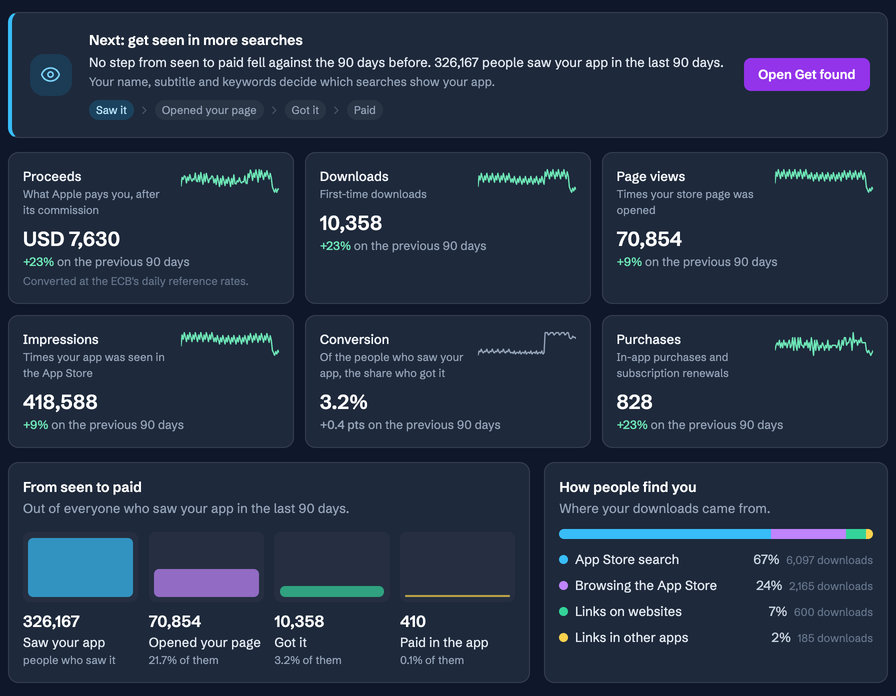
- See what it did: views and downloads before and after, on Sales & growth. Each change is marked on the chart and compared once 14 days have passed.
Each draft is scored against your own tracked keywords, ranks and popularity, and checked against Apple's limits before you see it. A field someone changed in App Store Connect since the draft is skipped, never overwritten. Step by step: the Get found guide.
Simulator or Get found?
Get found scores with the Simulator, and also aims at four-word phrases and the searches you track. Get found writes; the Simulator lets you try.
| Question | Get found | Simulator |
|---|---|---|
| Use it when | Get found: you want RespectASO to write your store page | Simulator: you want to try your own wording |
| It starts from | Get found: your real store page and the keywords you track | Simulator: the title, subtitle and keywords you type, filled in from your store page when it is connected |
| You get | Get found: name, subtitle, keywords and promotional text in every language, written into App Store Connect after you approve | Simulator: a score, a row per keyword, and a better wording you can send to Get found |
| Languages | Get found: every language of your page, and new ones | Simulator: one country at a time |
Both, step by step: Simulator or Get found? in the docs.
You approve, once
Show me every change first is the default. A draft stops at one screen with every change grouped as Store text and Languages, old and new side by side, a checkbox on each. One click on Apply to App Store Connect writes what you kept, and you submit it for review in App Store Connect. Your promotional text goes live on the App Store at once, with no review. Every applied field keeps its previous text, and Restore puts it back.
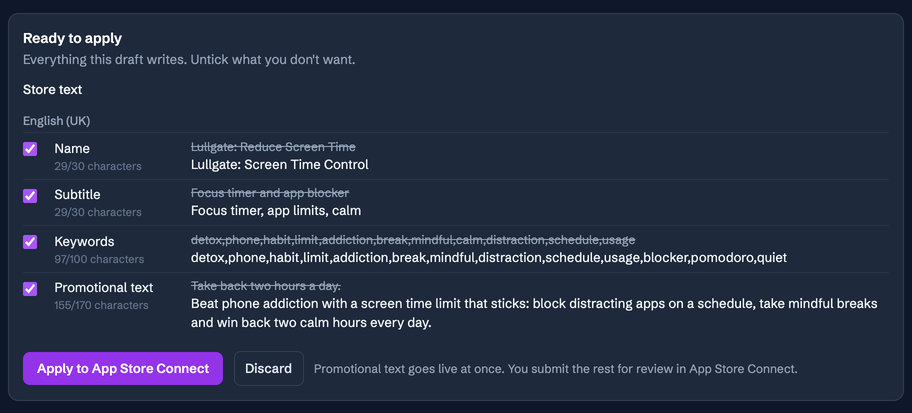
Prefer it hands off? Choose Apply it by itself, then tell me and a draft you start applies by itself, then tells you. With Draft new store text when you create a version on, creating a version in App Store Connect starts a draft that waits for you, so a version that only fixes bugs keeps its text.
Localize your App Store listing
Each language is another title, subtitle and keyword field Apple searches. You choose which of your languages are rewritten and which stay as they are, and RespectASO suggests new ones that fit your app, from where it is downloaded and where you research keywords, and drafts a complete page in each: written for that language, not translated word for word, with description and What's New. How languages work.
Custom product pages and reviews
Give each kind of search its own page with custom product pages, made for the searches that bring you users, and answer reviews one at a time with replies drafted in the reviewer's language.
The key, and what it can never do
RespectASO connects with one App Store Connect Team key with two roles, never an Admin key:
| Key | What it does | Apple's page |
|---|---|---|
| Marketing and Sales and Reports | Writes store text and replies to reviews, reads analytics and sales. Cannot submit apps, change prices or remove apps. | Marketing (Apple), Sales and Reports (Apple) |
| Admin, only if store analytics is not on yet | Used once to ask Apple for daily reports, then forgotten. Not needed if you already asked Apple. Revoke it afterwards. | Why Apple asks for Admin |
Apple's roles as of this release. Apple can change them; the links show the current list. More from Apple: About API keys and Revoke a key.
- RespectASO never submits to App Review, for versions and product pages alike.
- It never deletes. It can make 30 kinds of request to App Store Connect and none of them deletes; anything else is turned down on your Mac before it reaches Apple.
- Your key stays on your Mac, and requests go from your Mac straight to Apple.
Setup takes three steps: connect App Store Connect.
See what each change did
The Sales & growth tab shows what you earn, where downloads come from, and what changed after each release. It charts impressions, page views and downloads per day from Apple, with a marker on every change. Each change gets a before and after: 14 days either side, conversion, and the rank of each keyword you changed. When downloads fall week over week, it says so. How Sales & growth works.
From your AI assistant
RespectASO's MCP server has all 51 tools, the store tools among them: draft new store text, read your listing, add languages, draft custom product pages, check results and sales, and answer reviews. Set it up in Claude Desktop, Claude Code, Cursor, Codex or VS Code.
Prepare a version
"Prepare 2.3's store page in German and French."
Check a change
"How did last week's keyword change do?"
Assistants draft. They save store text or post review replies only when you turn that on for AI assistants. Every tool: MCP setup.
Built on your keyword research
Get found is part of RespectASO, so its drafts start from the same data as everything else: keyword popularity, difficulty and opportunity in 175 storefronts, and the AI Niche Researcher and ASO Score Simulator. The keywords you track, from Discover or the Keywords page, go into the next draft, and once five more are waiting since your last one, the Apps page says so. How other tools handle the store page: ASO tool comparisons.
FAQ
Does RespectASO submit my app to App Review?
No. RespectASO writes the store text into the version you are editing and stops at Ready to submit, with a button that opens App Store Connect. You submit there, with your build and screenshots, when you are ready.
Which App Store Connect key does RespectASO need?
One Team key with two roles: Marketing, which writes store text and replies to reviews, and Sales and Reports, which reads analytics and sales. Admin keys are turned down. Store analytics need a one-time switch with an Admin key that RespectASO uses once and never saves.
Can RespectASO change my store page without asking?
Not unless you let it. Show me every change first is the default: a draft stops at one screen that lists every change, you untick what you don't want, and one click on Apply to App Store Connect writes the rest. Choose Apply it by itself, then tell me and a draft you start applies by itself and tells you afterwards. Every applied field keeps its previous text, ready to restore.
Can I run it from Claude or Cursor?
Yes. RespectASO's MCP server gives Claude Desktop, Claude Code, Cursor, Codex, VS Code and other assistants the same store drafts, store results and review replies. Assistants draft. They save store text or post review replies only when you turn that on for AI assistants in RespectASO.
Where do my keys and store data go?
RespectASO runs on your Mac. Your key file stays in its data folder there, and requests go from your Mac straight to Apple. The drafts use the AI provider you chose, or a model on your Mac.
Tune your store page this week
Download RespectASO, connect App Store Connect, and click Draft new store text.