Connect App Store Connect
One key lets RespectASO read your store page, draft better text, apply it after your approval and show what changed.
Once connected, Get found can tune your title, subtitle, keyword field and promotional text, add languages, create custom product pages, answer reviews and show sales and growth. Everything runs on your Mac and talks to Apple directly.
Step 1: Open Team Keys in App Store Connect
In App Store Connect, open Users and Access, then Integrations, then Team Keys. The Issuer ID sits above the list of keys; copy it.
Step 2: Make one key with two roles
Generate a key and give it two roles: Marketing and Sales and Reports. Download the file. Apple lets you download it once, so keep it until RespectASO says it is connected.
| Key | What it does | Apple's page |
|---|---|---|
| Marketing and Sales and Reports | Writes store text and replies to reviews, reads analytics and sales. Cannot submit apps, change prices or remove apps. | Marketing (Apple), Sales and Reports (Apple) |
| Admin, only if store analytics is not on yet | Used once to ask Apple for daily reports, then forgotten. Not needed if you already asked Apple. Revoke it afterwards. | Why Apple asks for Admin |
Apple's roles as of this release. Apple can change them; the links show the current list. More from Apple: About API keys and Revoke a key.
No single role below Admin can both edit the store page and read analytics, and one key can hold several roles, so one key with these two does it all. Already made two keys, one with Marketing and one with Sales and Reports? Drop both files; they work too.
Step 3: Connect
In RespectASO, open Settings, App Store Connect. Drop the key file, paste the Issuer ID, and add your Vendor number (in App Store Connect under Payments and Financial Reports). Click Connect.
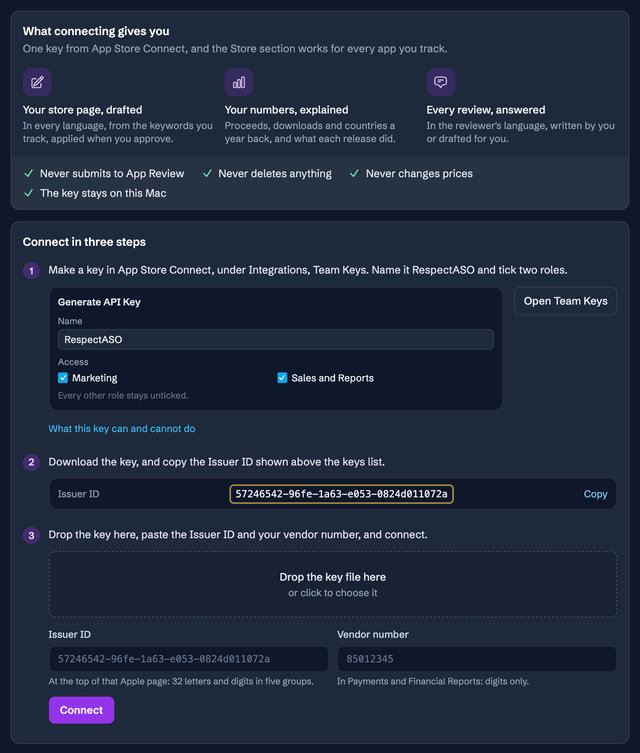
RespectASO checks what the key can do and says so in one line: "Store text, replies, analytics and sales: ready." A key with the Admin role is turned down, with a note naming the two roles to use instead, because it can do far more than RespectASO needs.
Optional: switch on store analytics
Impressions and product page views come from Apple's analytics reports. Apple starts them only after an Admin asks once per app. If you already asked Apple, RespectASO finds that with your key and asks for nothing more. Otherwise, under Store analytics, click Switch on with an Admin key, once and drop a temporary Admin key file. RespectASO uses it once to ask Apple for the daily reports and for Apple's one-time snapshot of your history, never saves it, and forgets it right after. Then revoke the key in App Store Connect.
With the snapshot, you get every day of impressions, page views and downloads Apple holds, back to January 2024. Reports arrive daily. Until the first one arrives, Sales & growth shows downloads from your sales reports.
What RespectASO can and cannot do with your key
- It never submits to App Review. Not a version, not a product page. When changes are applied, Get found shows Ready to submit with a button that opens App Store Connect.
- It never deletes anything. RespectASO can make 30 kinds of request to App Store Connect, and none of them deletes. Anything else is turned down on your Mac before it reaches Apple.
- It writes only after your approval, unless you choose Apply it by itself, then tell me for drafts you start.
- It never creates versions, changes prices or removes apps, and neither role can either.
Your key file stays in RespectASO's data folder on your Mac, readable only by your user account. Requests go from your Mac straight to Apple.
Settings on the same page
The first two are the Store drafts card, for every app.
| Setting | What it does | Starts |
|---|---|---|
| Draft new store text when you create a version | Create a version in App Store Connect and its draft starts by itself while RespectASO is open, then waits for you. Discard it when the version only fixes bugs. | On |
| Show me every change first | You see everything once and apply it with one click. | On |
| AI assistants: Save store text changes in App Store Connect | Until you turn it on, assistants draft store text and you apply it in RespectASO. | Off |
| AI assistants: Post replies to reviews | Until you turn it on, assistants draft replies and you post them in RespectASO. | Off |
A Mac notification when a draft is ready and when changes are applied follows the one switch for every notification, Tell me on this Mac in Settings, Mac App.
Check or disconnect
Check keys asks Apple again what the key can do. Disconnect deletes the key file from your Mac, and RespectASO stops reading and writing your store pages. Revoke the key in App Store Connect too if you no longer use it.
Troubleshooting
| Message | What to do |
|---|---|
| Apple did not accept this key | Check the Issuer ID, and that the key is not revoked. |
| This key has the Admin role | Make one key with two roles instead: Marketing and Sales and Reports. |
| This key can manage certificates and builds | That is the App Manager or Developer role. Make one key with two roles instead: Marketing and Sales and Reports. |
| This key cannot read your store page or your sales | Make one key with two roles: Marketing and Sales and Reports. |
| This key no longer reads analytics and sales | The key lost a role in App Store Connect. Make one key with both roles and connect it again. |
| Apple did not let this key post replies | Click Copy reply, then Open Ratings and Reviews and paste it there. |
From your AI assistant
The same connection works from Claude, Cursor, Codex and other assistants through RespectASO's MCP tools: get_store_connection tells your assistant which key is connected. The whole feature, in one page: ASO autopilot for App Store Connect.