Simulator or Get found?
One lets you try your own wording, the other writes your store page. Both sit in Store.
Get found is the first tab of Store in the top bar, and Simulator the second. Get found is the one to use when you want your store page written, in every language, and applied after you approve; the Simulator is the one to use when you have your own idea for a title, subtitle or keywords and want its score before you ship it.
Get found scores with the Simulator, and also aims at four-word phrases and the searches you track. Get found writes; the Simulator lets you try.
| Question | Get found | Simulator |
|---|---|---|
| Use it when | Get found: you want RespectASO to write your store page | Simulator: you want to try your own wording |
| It starts from | Get found: your real store page and the keywords you track | Simulator: the title, subtitle and keywords you type, filled in from your store page when it is connected |
| You get | Get found: name, subtitle, keywords and promotional text in every language, written into App Store Connect after you approve | Simulator: a score, a row per keyword, and a better wording you can send to Get found |
| Languages | Get found: every language of your page, and new ones | Simulator: one country at a time |
Try your own wording
- Open Store, then Simulator.
- Pick your app and the country. When App Store Connect is connected, the title, subtitle and keywords fill in from your store page; edit any of them, or type your own.
- Click Run Simulation, or Run tonight. You can keep working while it runs.
- Read the ASO Readiness score, the row for each keyword your wording targets, and the Suggested Metadata: a better title, subtitle and keyword field, each within Apple's limits.
- Like a suggestion? Use on my store page sends it to Get found as a draft ready to apply.
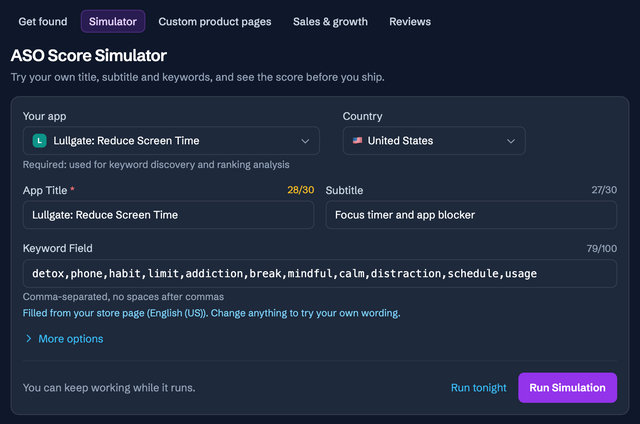
Every number in the Simulator: AI features.
Let RespectASO write it
- Open Store, then Get found. It says which languages and fields the draft covers and which searches it aims at.
- Click Draft new store text. With Draft new store text when you create a version on, creating a version in App Store Connect starts one that waits for you.
- At Ready to apply, untick what you don't want and click Apply to App Store Connect.
- Promotional text goes live at once. You submit the rest for review in App Store Connect.
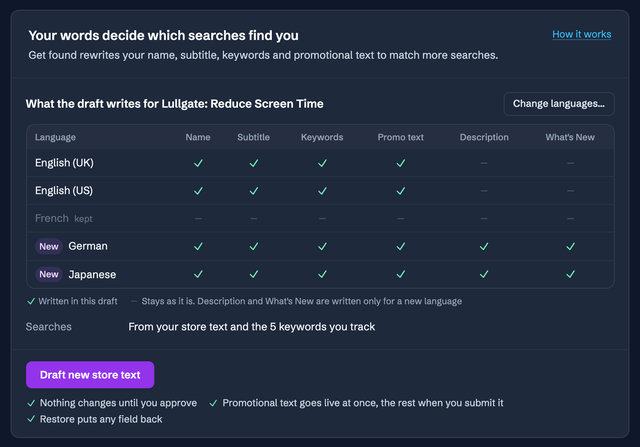
Every step, and what happens after you apply: Get found. What Get found does for your app, in short: get found in more searches on the App Store.