Get found
Get found in more searches on the App Store. AI finds the searches that fit your app and writes new store text. You approve every change.
Get found is a tab in the Store section of RespectASO: your store page rewritten for more searches, in every language you choose. It needs App Store Connect connected and an app you track. Add app, beside the app picker on every Store page, adds one of your account's apps in one click, or any other by name; an app you add elsewhere shows here by itself.
Beside it, the second tab of Store is the Simulator, for trying a title, subtitle and keywords of your own and seeing their score first. Which one to use when: Simulator or Get found?
How it works
The card opens with Your words decide which searches find you: Apple matches searches to the words in your name, subtitle and keywords, and Get found rewrites them to match more searches. The first time, it shows a picture of a store page's words leading to the searches they match, and the four stages, the same everywhere in the app:
- Find searches: phrases people search, from your store text and the keywords you track. For each language, the ASO Score Simulator gathers phrases of one to four words from your name, subtitle, keyword field and description, adds up to 20 of the keywords you track in that country, and looks each one up in the App Store. Tracking none is fine.
- AI rewrites your name, subtitle, keywords and promotional text: in each language you choose, within Apple's limits, to answer as many good searches as possible; the promotional text uses 150 to 170 of its 170 characters. A new language gets every field, written for it rather than translated word for word.
- You approve: untick what you don't want. Nothing changes before you apply. One click on Apply to App Store Connect writes the rest, and you submit it for review in App Store Connect. RespectASO never submits to App Review.
- See what it did: views and downloads before and after, on Sales & growth. Each change is marked on the chart and compared once 14 days have passed.
Once you have applied a change, the card folds this to its title and line, with How it works to open it again. See each step opens How Get found works, a walkthrough of the four stages, one at a time: a picture, the title and one sentence, with Next, Back and dots to move between them. More on each part: languages, custom product pages and sales and growth.
Your draft
Under it, the card says what the next draft covers:
- Languages: the languages on your page it rewrites, and the new ones it adds, marked New.
- Changes: name, subtitle, keywords and promotional text; new languages get every field, description and What's New included.
- Searches: from your store text and the keywords you track. An app that tracks none still gets a draft from its own words.
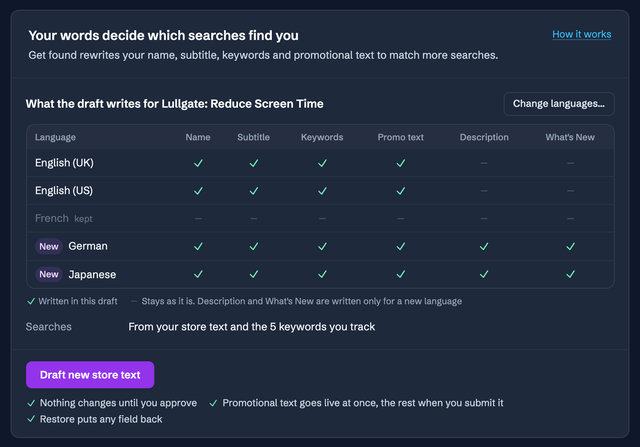
What the draft writes shows every language by name, subtitle, keywords, promotional text, description and What's New: a tick is written in this draft, a dash stays as it is. Your description and What's New are written only for a new language. When no new version is open in App Store Connect, only promotional text can change, so the other fields read Next version and a line links to creating one. Change languages… chooses which of your languages are rewritten and which new ones are added.
The tab opens at once. The first time, your store page comes in from Apple by itself.
Draft new store text
Draft new store text asks first, in a few lines: what it will draft, that you can keep working while it runs, that your Mac stays awake while it works and that it starts again if RespectASO quits, and that nothing changes in App Store Connect until you approve. Choose Start now or Tonight at 02:00. Every other button that starts or writes something asks the same way.
Under the button, three checks say what to expect: Nothing changes until you approve (or Applies by itself when it is ready, when you chose that in Settings), Promotional text goes live at once, the rest when you submit it, and Restore puts any field back.
The tab follows the draft: while it runs, its steps show as a checklist, each marked done, skipped with a reason, or failed with what to do, and while it waits for you, the review screen is the tab. The start card returns afterwards. A step that cannot run yet says why: new languages, for example, open when the next version exists in App Store Connect.
Review replies are not part of a draft: whether to answer a review stays your call, one review at a time, on the Reviews tab. Custom product pages are drafted on their own, on the Custom product pages tab.
What gets drafted
- Title, subtitle and keyword field in each language you chose to rewrite: the ASO Score Simulator gathers phrases of one to four words from your name, subtitle, keyword field and description, pairs most of all (words from different fields put together, the way Apple combines them), adds up to 20 of the keywords you track in that language's storefront, looks each one up in the App Store for popularity, competition and your rank, and the best variant becomes the draft.
- Promotional text, built from your app's strongest themes, within Apple's 170 characters (what promotional text is for).
- Description and What's New only for new languages. Your existing description stays yours.
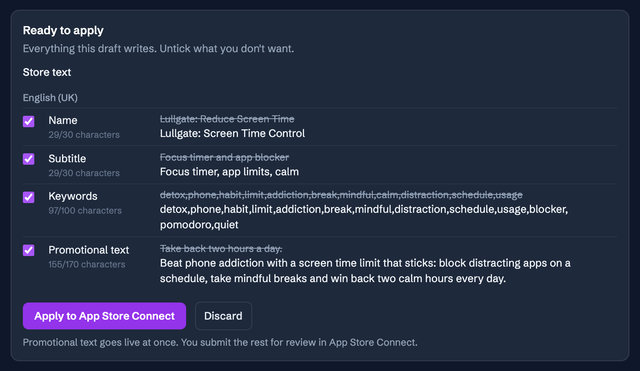
Every field is checked against Apple's limits before you see it: 30 characters for the title and subtitle, 100 for the keyword field. A field that would not fit is marked with the problem and cannot be applied. A field that would not change is left out.
You approve
With Show me every change first chosen (the default), a draft stops at Ready to apply. Changes are grouped as Store text and Languages. Each field shows the old text above the new one with its length against Apple's limit, and each has a checkbox, all checked. Untick what you don't want, then click Apply to App Store Connect. Promotional text goes live on your App Store page at once, with no review; the rest you submit for review in App Store Connect. Discard drops the whole draft without changing anything, and you can draft new store text again at once.
Choose Apply it by itself, then tell me under Store drafts in Settings, App Store Connect, and a draft you start applies by itself and tells you afterwards.
Where each change goes
- Name and subtitle go to the app information Apple has open for edits. When none is open, they wait: "Name and subtitle can change with the next version. Create it in App Store Connect first."
- Keywords go to the version you are editing, and wait the same way when there is none.
- Promotional text goes to the version you are editing and to the live one, since Apple lets promotional text change at any time.
Nothing is overwritten blind. When someone changed a field in App Store Connect since the draft, that field is skipped with "Changed in App Store Connect since the draft; draft again." After applying, each field shows Applied or the reason it was skipped.
After you apply
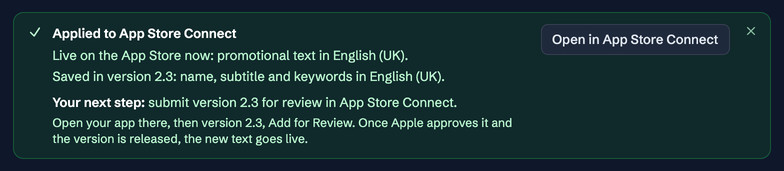
A green notice at the top says what happened: Applied to App Store Connect, what is live on the App Store now (promotional text) and what was saved in which version (name, subtitle, keywords). When a version received changes, it gives Your next step, submitting that version for review in App Store Connect, and a button, Open in App Store Connect. You submit there, with your build and screenshots, when you are ready; RespectASO never submits to App Review. Then it follows the version: with Apple for review, rejected (read why in App Store Connect), live. Close a notice with its X; it stays closed until there is news. A draft that finds nothing to change ends at once and says so.
Then the tab follows that version, whatever you draft next: with Apple for review, rejected (read Apple's reason in App Store Connect, fix it there and submit again) or live, with a link to Sales & growth to see what the change does.
Restore
Every applied field keeps its previous text. The Changes so far table on the Get found tab lists each change with a Restore link, which writes the old text back while the version is still open for edits. Promotional text can be restored at any time.
Smaller steps
- Redo with a note drafts again with what you tell it, such as "keep the word habit in the title".
- Discard drops a draft.
- Use on my store page on the Simulator's results turns the variant you chose into a draft, ready to apply.
Drafts that start by themselves, and notifications
The Store drafts card in Settings, App Store Connect, sets how drafts behave for every app. With Draft new store text when you create a version on, creating a version in App Store Connect is enough: its draft starts by itself while RespectASO is open and waits for you, and you apply it or discard it when the version only fixes bugs. In the Mac app, with Tell me on this Mac on in Settings, Mac App (one switch for every notification), notifications say when a draft is ready ("Draft ready") and when changes are applied ("Changes applied"), with a reminder to submit in App Store Connect when you are ready.
From your AI assistant
run_autopilot starts the same draft from Claude, Cursor or another assistant, and apply_store_update applies it when you allow assistants to apply store changes. Every store tool is on the MCP page; the overview is ASO autopilot for App Store Connect.