Add App Store languages
Choose which languages get rewritten, which stay as they are, and which new ones get a complete store page.
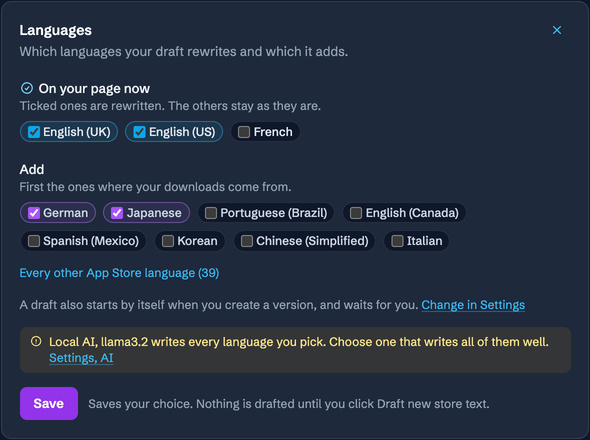
Each App Store language is another title, subtitle and keyword field Apple searches, and many storefronts read more than one language. On the Get found tab, What the draft writes shows each language the next draft rewrites or adds, field by field, and Change languages… opens Languages, a dialog with the languages your page has and every other App Store language. It needs App Store Connect connected.
Rewrite, keep or add
Under On your page now, each language your page already has is ticked: a ticked one is rewritten, an unticked one stays exactly as it is. Under Add, tick the new languages you want. Save keeps the choice, and Draft new store text follows it. Until you choose, every language is rewritten and the three most promising new ones are added.
Which languages it suggests
Up to 8 new languages are suggested, in this order:
- Where your app is downloaded most, from your store analytics, when you have them.
- Otherwise, the main language of each storefront you track keywords in.
- Then a fixed list of large App Store languages: Spanish (Mexico), Portuguese (Brazil), German, French, Japanese, Korean, Chinese (Simplified) and Italian.
The supported countries page lists which languages Apple offers in each storefront.
What a new language gets
- Title, subtitle and keyword field, written for that language by the ASO Score Simulator from your current store text, not translated word for word.
- Description and What's New, translated from your current text.
- Promotional text in that language.
Every field is checked to be in the right language and within Apple's limits before you see it.
Apply
Choose the languages, from the suggested ones or any other App Store language, save, then click Draft new store text, review, and click Apply to App Store Connect. Your AI model writes every language you pick, so choose one that writes well in all of them. RespectASO adds each language to the app information and to the version you are editing in App Store Connect. The new languages go live when you submit that version.
Apple adds languages only to a version that is open for edits. Without one, RespectASO says "New languages go live with a new version. Create one in App Store Connect first." and Apply to App Store Connect waits.
When a draft runs and a version is open, it drafts the new languages you chose, or the three most promising ones until you choose, and you approve them with everything else.
From your AI assistant
Ask "Prepare 2.3's store page in German and French". Your assistant calls add_store_languages, waits for the draft and shows it to you. More examples on the MCP page, and how languages fit the rest on ASO autopilot.